Getting Started
Learn how to customize templates, work with components and build websites efficiently with Blankit.
Using Templates
1. Choose a Template
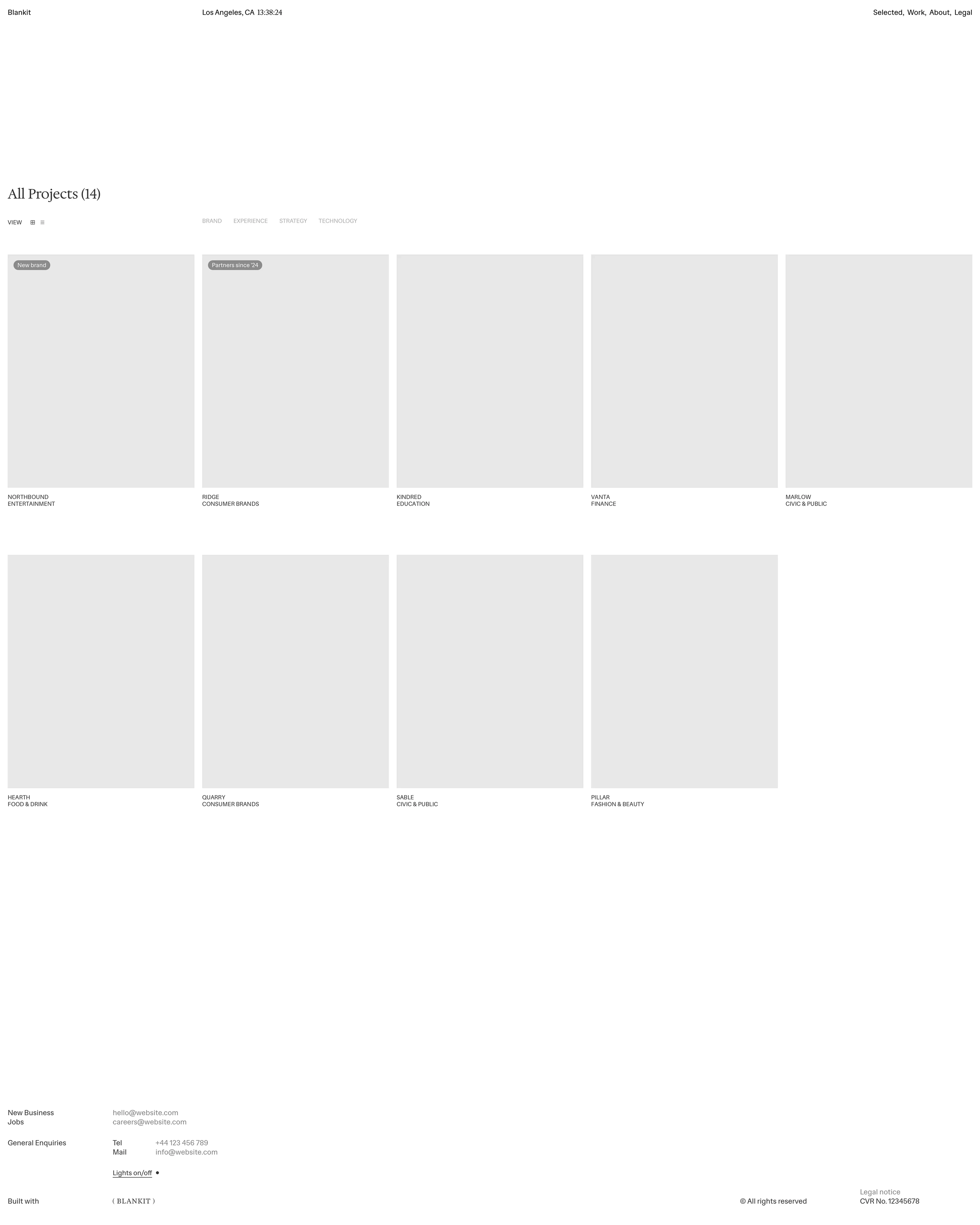
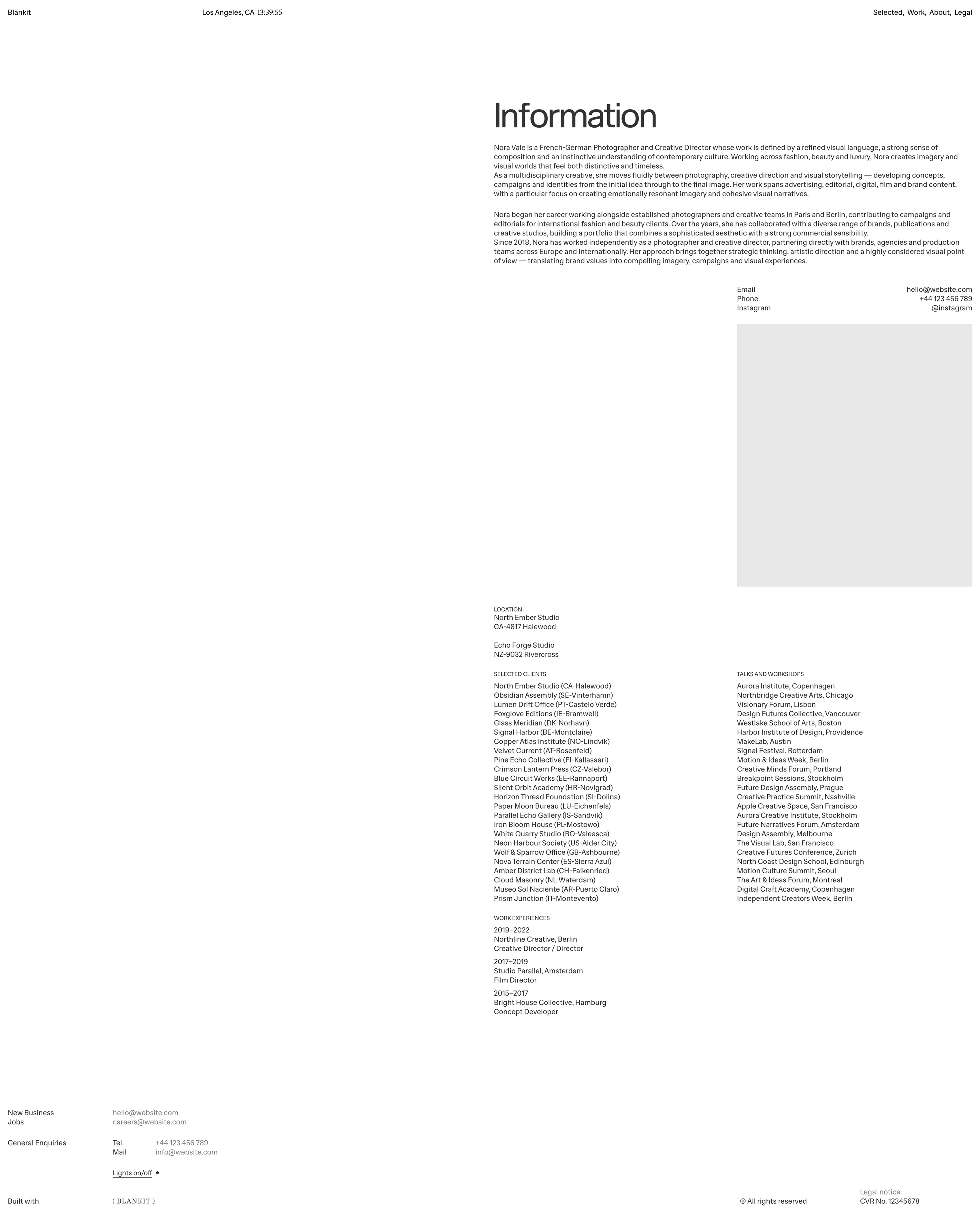
Browse the included templates and choose the one you'd like to use as the foundation for your portfolio.

2. Set the Home Page
Set the selected template's Home page as your new homepage. You can rename or remove the previous homepage if it's no longer needed.

3. Move the Pages
Move all pages that belong to the selected template into the project root so they become part of your website structure.


4. Connect the CMS Components
Choose a CMS component—for example, a Hero Slider.

Update all links (currently pointing to /case) so they use the correct CMS dynamic route:
Work to /cms/work/:slugNews to /cms/news/:slugCareers to /cms/careers/:slug
This ensures every CMS item opens its corresponding detail page.


5. Example: Work CMS Thumbnails
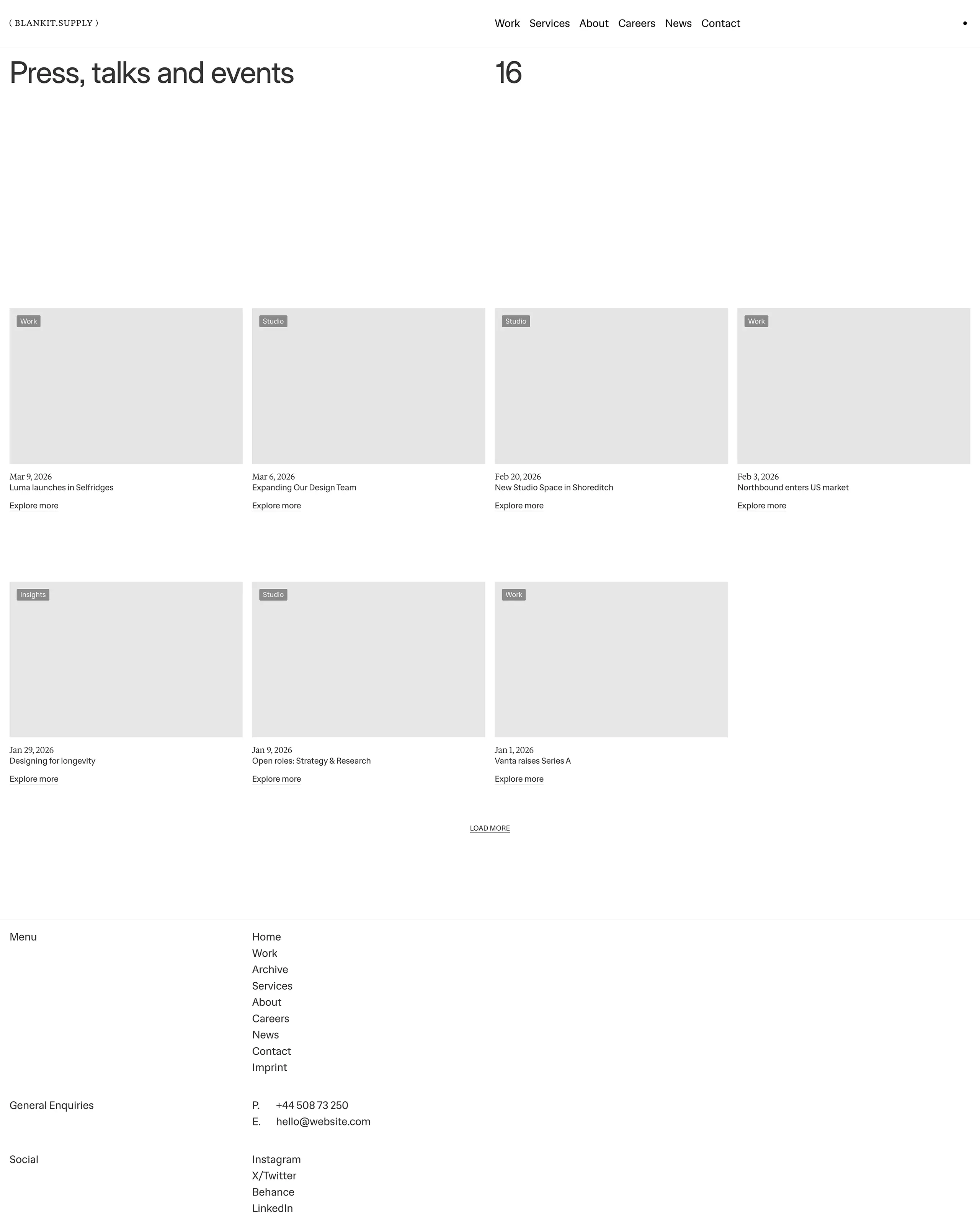
This is an example of a CMS-powered Work thumbnail component. Make sure the links in this component also point to /cms/work/:slug.


6. Open the CMS Folder
Navigate to the CMS folder and open the collection you want to customize—for example, Work.

7. Enable the Matching Layout
Inside the CMS page, you'll find multiple layouts—one for each included template. Set the layout that matches your chosen template to Visible. You can safely delete all other layouts if you don't need them.